
ServerHub: Agent Onboarding Setup
| Step-by-Step Guide for ServerHub Agents |
Overview
This guide walks you through the required setup tasks for all ServerHub agents:
- Verify your Identity
- Setup your Coverage Area
- Upload Credentials
- Customize your Profile
- Setting up your personal ServeManager Wallet to receive payments
- Download the Mobile App
These steps are required before you can join the marketplace and start receiving jobs. Plan approximately 10–15 minutes to complete the full process. We recommend using the ServeManager Desktop site (www.servemanager.com) when setting up your profile.
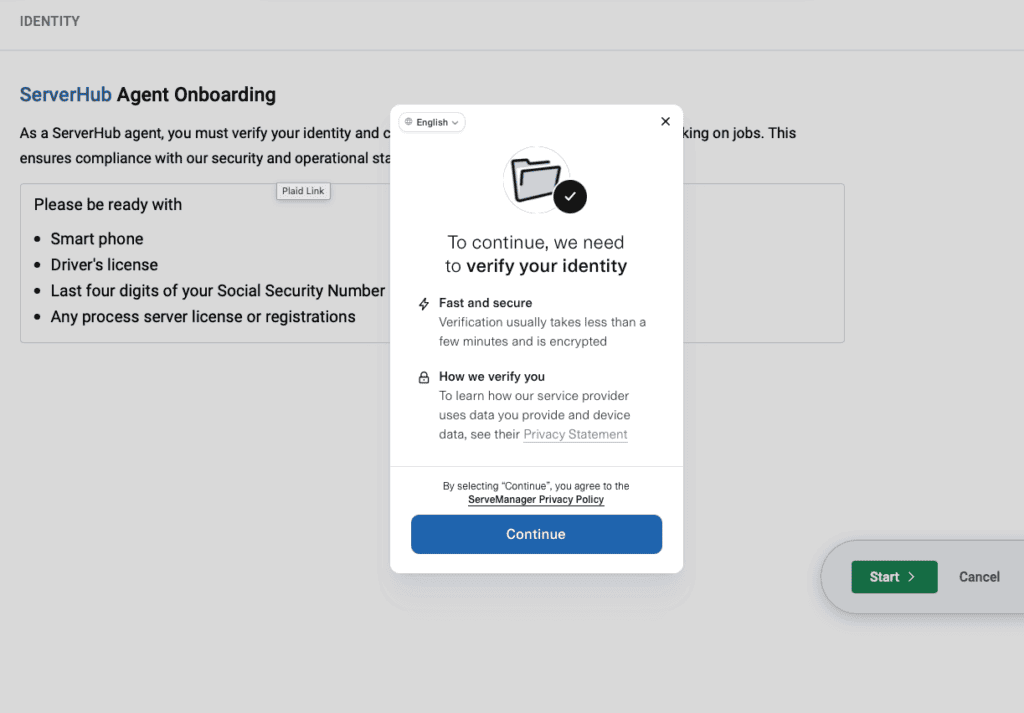
| ℹ Your personal information is submitted directly to Plaid — ServeManager staff cannot view your SSN, date of birth, or other sensitive identity details. |

Your Marketplace tab is where you begin setting up your requirements (My Account > Marketplace)
Click Join ServerHub to get started
Part 1: Identity Verification
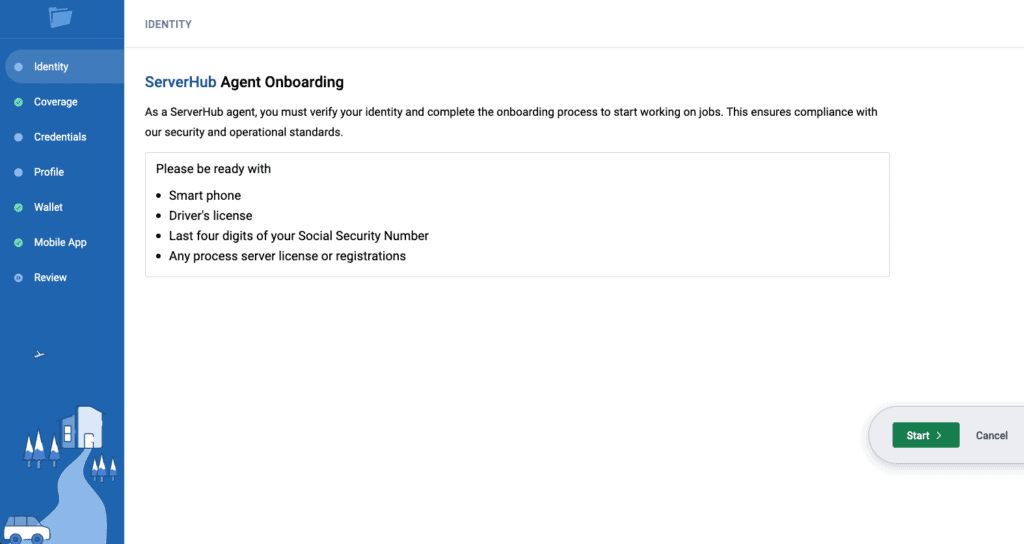
Your menu will show the progress as you move through the setup steps
To start, you will begin by verifying your identity, you will need a smartphone to proceed with identity verification
Part 2: Set your Coverage Area
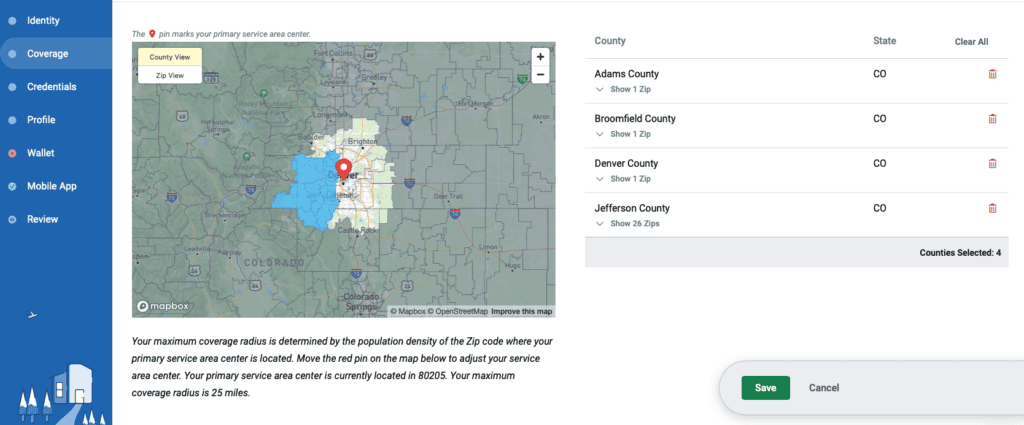
Next, you will set your coverage map by clicking the desired counties on the provided map, using the dropdowns for each county to remove specific zip codes as needed, or clearing out the entire county selection. This step is crucial in ensuring you are marketing yourself in the correct areas where you can provide service of process in a professional, convenient manner. ServerHub Agents have a maximum coverage radius based on your location, your pin is based on your account’s company address. You can only select counties/zip codes within this radius.
Part 3: Completing Your Credentials
What Are Credentials?
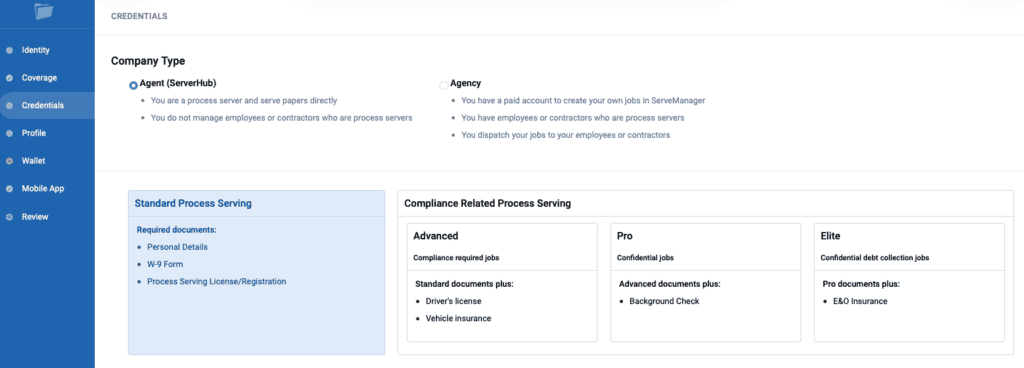
Your Credentials determine what jobs you are able to accept from ServerHub. Credentials are your verified identity information required by Dwolla (our payment processor) to comply with federal Know Your Customer (KYC) and Anti-Money Laundering (AML) regulations. This is a one-time process.
Choosing Your Account Type
| Credential Type | Job Types | Required Documents |
| Standard | Standard process serving jobs | Identification W9 Process Serving License/Registration |
| Advanced | Compliance required jobs | Driver’s License Vehicle Insurance |
| Pro | Confidential jobs | Background Check |
| Elite | Confidential debt collection jobs | E&O Insurance |
Credential Accuracy Rules
Data accuracy is critical. Mismatched information will cause delays or failed verification.
| Rule | Detail |
| Legal Name Only | Enter your full legal name — no nicknames. “Robert” not “Bob.” |
| No P.O. Boxes | You must provide a physical street address. |
| No Abbreviations | Do not abbreviate unless your official documents do. |
| SSN Required | Last 4 digits are required; full SSN may be requested. |
| No Credit Check | This process does not affect your credit score. |
| Business Name | Must match your IRS documents exactly. |
| ⚠ Double-check every field before submitting. A single typo in your name, date of birth, or SSN can put your account into “retry” or “document” mode — freezing payments until resolved. |
Part 4: Customize your Profile
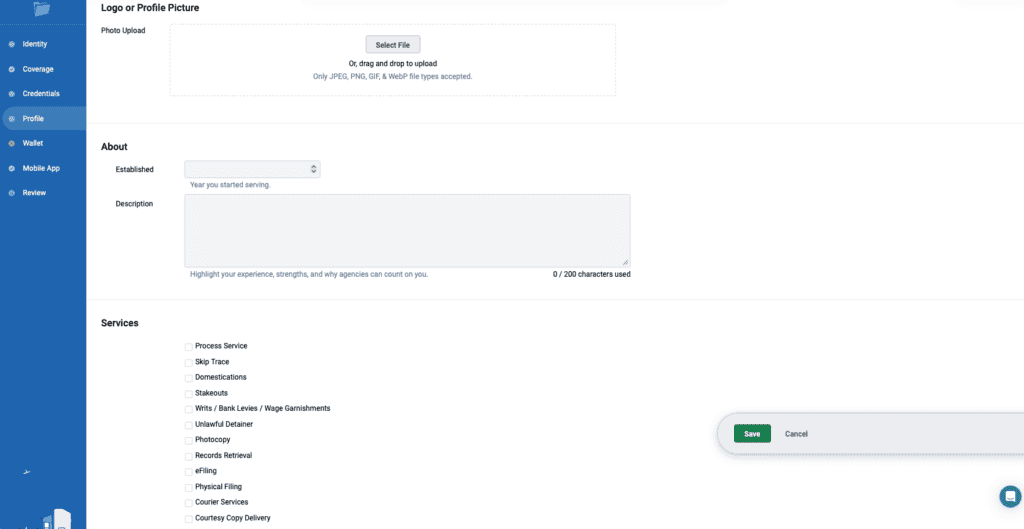
Your profile is where you can add personal information to distinguish yourself to potential clients.
- Photo Upload – Upload a professional photo for your profile
- About – What year did you start serving? Include your experience and strengths using the Description section so agencies can determine why you’d be a great fit for the job
- Services – Check any and all services that you provide so agencies know what you bring to the table
Part 5: Setting Up Your Personal Wallet
What Is the ServeManager Wallet?
Your ServeManager Wallet is a digital account that holds your funds, receives payments from completed jobs, and lets you transfer money to your bank. It is powered by Dwolla and connected to your bank account through Plaid.
Step-by-Step: Wallet Setup
| 1 | Navigate to Your Wallet Log in to ServeManager and go to your account dashboard. Click on Wallet in the main navigation menu. |
| 2 | Start the Wallet Setup Process Click Set Up Wallet. You will be guided through the Dwolla verification flow. |
| 3 | Choose Your Account Type Select Personal if you are an individual agent receiving payment. Select Business only if you are managing funds on behalf of a business entity. This choice cannot be changed after submission. |
| 4 | Enter Your Identity Information Provide all requested fields accurately: Full legal name Date of birth Physical address (no P.O. boxes) Social Security Number (last 4 or full SSN) |
| 5 | Upload Identity Documents (If Requested) Dwolla may request a photo of your government-issued ID (driver’s license or passport). Upload a clear, legible image when prompted. |
| 6 | Connect Your Bank Account via Plaid Once your identity is verified, you will connect your bank account using Plaid. Follow the on-screen prompts to log in to your bank and select the account to link. Important: Make sure you select the correct sub-account. If the wrong account is connected, a support ticket must be opened to correct it. |
| 7 | Confirm Wallet Activation Once Dwolla verifies your identity and your bank is linked, your wallet status will show as Verified. You are now ready to receive payments. |
Part 6: Download the ServeManager Mobile Application
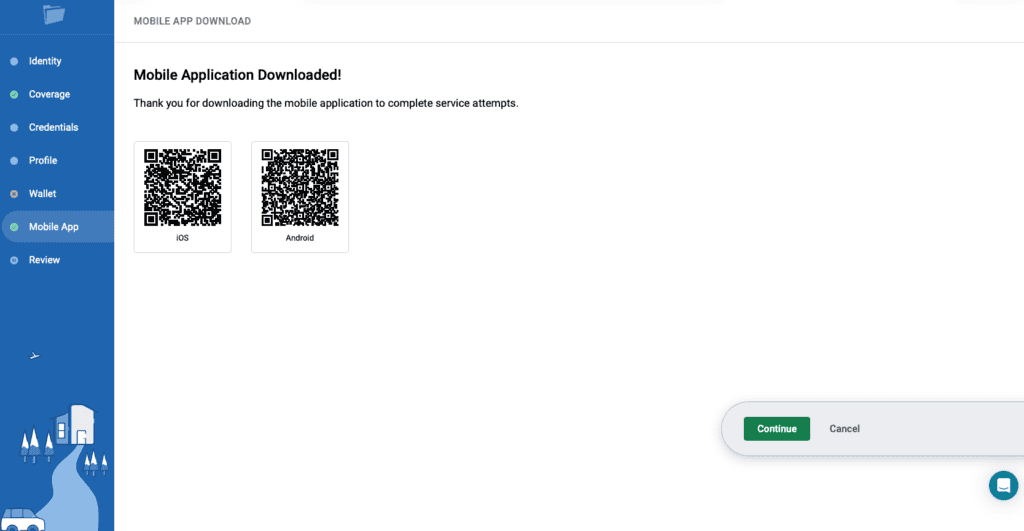
Use the QR code for your respective smartphone device to download the ServeManager App. You will use the mobile app to create service attempts, upload photos, route your jobs, and digitally sign affidavits. (Please note that the Mobile App is required when working ServerHub jobs)
Part 7: Review
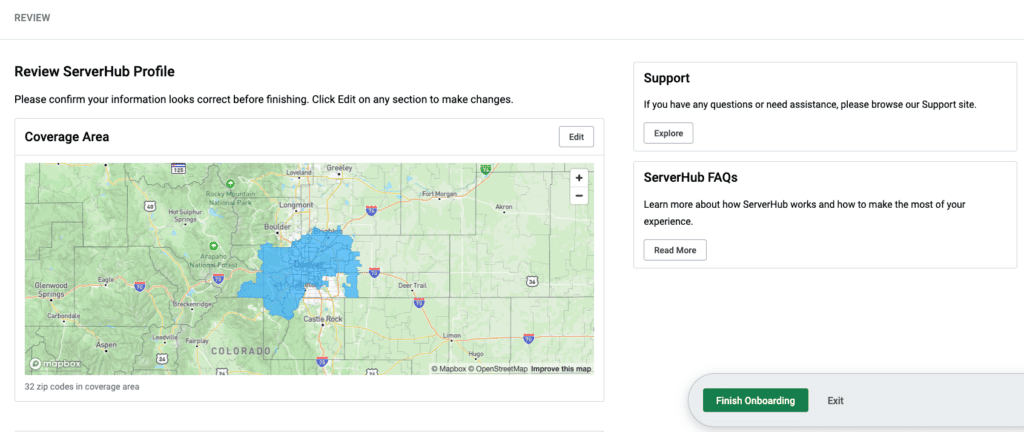
Upon completing the previous steps, your Review tab will show the current progress of your profile. If any lingering items remain, the review section will indicate what needs to be completed before you can finish onboarding
Troubleshooting Common Issues
Account Stuck in Retry or Document Mode
If your wallet verification fails, your account may be placed in “retry” mode (resubmit corrected info) or “document” mode (upload supporting documents). Payments will be paused until the issue is resolved.
Steps to resolve:
- Review the error message shown on your wallet summary page.
- Correct any inaccurate information and resubmit, OR upload the requested document.
- If the issue persists, contact support at [email protected] with your account details.
| ✖ Wallet types cannot be changed once set. If you selected the wrong type, you may need to start over. Contact ServeManager support before attempting to reset your wallet. |
Bank Account Issues
- Microdeposits are no longer supported — you must connect your bank through Plaid.
- If you connected the wrong sub-account, open a support ticket immediately — only a developer can correct this.
- If Plaid cannot locate your bank, try searching by bank name or routing number.
Tax & Compliance Notes
Dwolla may contact you directly during tax season to request additional verification or documentation. Failure to respond may result in temporary account suspension.
Dwolla may also issue tax documents (e.g., 1099 forms) to agents who reach applicable payment thresholds during the tax year. Check your email and Dwolla account during early Q1 for any tax-related correspondence.
| ℹ ServeManager does not have access to your tax documents — these are managed directly between you and Dwolla. |
Need Help?
| Issue | Contact |
| Wallet setup questions | Contact your ServeManager account manager or internal support team. |
| Verification failure / stuck account | Email [email protected] with your account details. |
| Wrong bank account connected | Open a ServeManager support ticket immediately — developer correction required. |
| Tax documents / compliance | Log in to your Dwolla account or check the email on file with Dwolla. |
- Updated Sep 23, 2026
Related Articles
- Exchange: Client Company Data Fields
- Exchange: Note Templates
- Exchange: As a contractor, what are my obligations to the Exchange?
- Exchange: How to Download the ServeManager App
- Exchange: Minimum Device Requirements for ServeManager App
- Exchange: Mandatory ServeManager Mobile App Usage
- Exchange: How to Log Attempts in the ServeManager App