
Document Previewer
We are excited to introduce our new document preview workflow, designed to help you create jobs faster, more accurately, and with greater confidence. This enhancement gives you a clearer process for validating case details, recipients, documents, and service information — all in one intuitive screen, without bouncing back and forth between windows or risking data entry errors.
What You Can Do Today
With the new workflow, you can now:
- Quickly verify the case name, case number, and court information
- Confirm what is being served and where it is going
- Capture recipient details and service addresses with confidence
- Reduce fat-finger mistakes by pulling information directly into the correct fields
When creating a new job, after uploading a Document to be Served, you will see the Docs symbol on the left hand side under the shortcut menu:
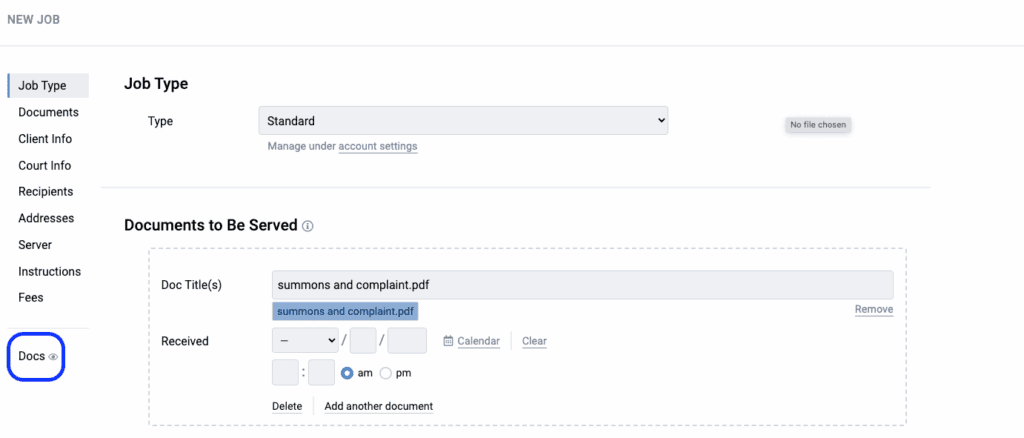
Clicking this will open the Document Previewer that will be side-by-side with the new job form
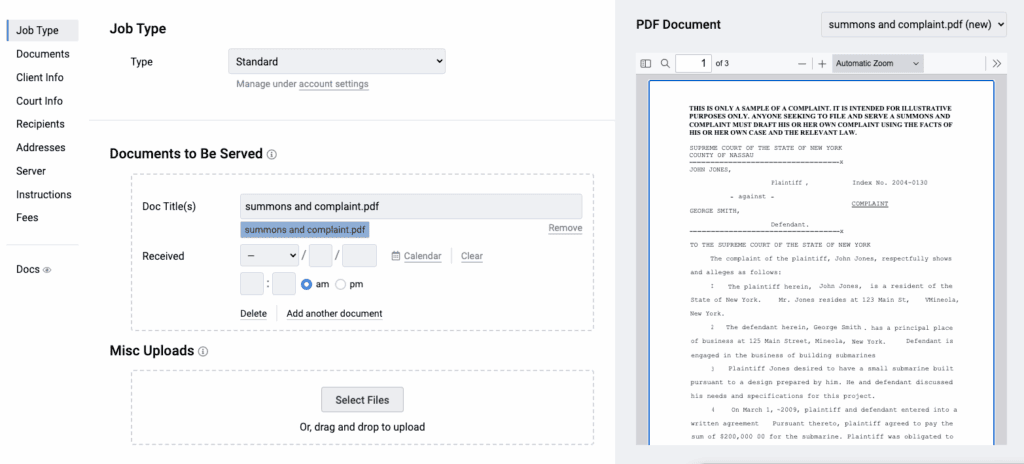
If uploading multiple documents, you can open the dropdown to switch views between the documents, along with various formatting tools to change zoom style, highlight selected portions of text, scroll style, etc.
Use this tool to spot check and review service documents for better accuracy when creating new jobs.
- Updated Nov 3, 2025